Administration
Users, page permissions, backups, statutory parameters and module settings: the section that manages the program itself. Visible to the administrator only.
From first launch to daily use
The program opens in setup mode; once the administrator password is set, the login screen takes over.
Everyone sees only their own work
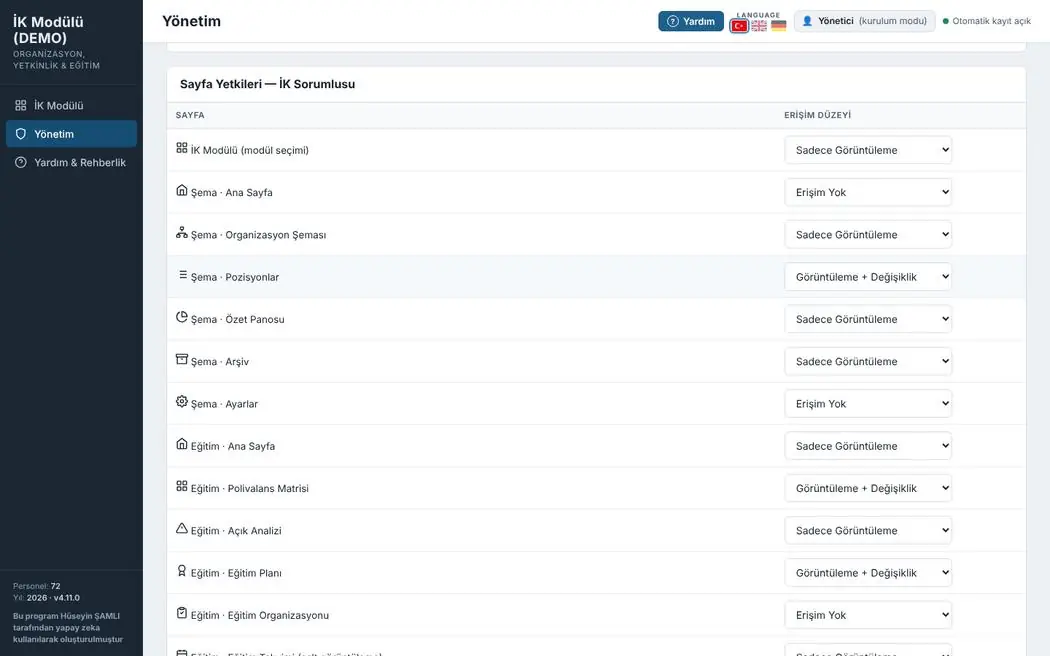
Permissions are set per page, not per module; within the same module, a person can edit one page and only view another.
The page does not appear in the menu. A user with no access to any page of a module does not see that module's card either.
The page opens and reports and outputs can be generated; records cannot be added or changed.
Adding, editing and deleting records. The administration page and critical operations remain open to the administrator only, even at this level.
Administration screens
Click the images to enlarge them. All data is fictional.
Users
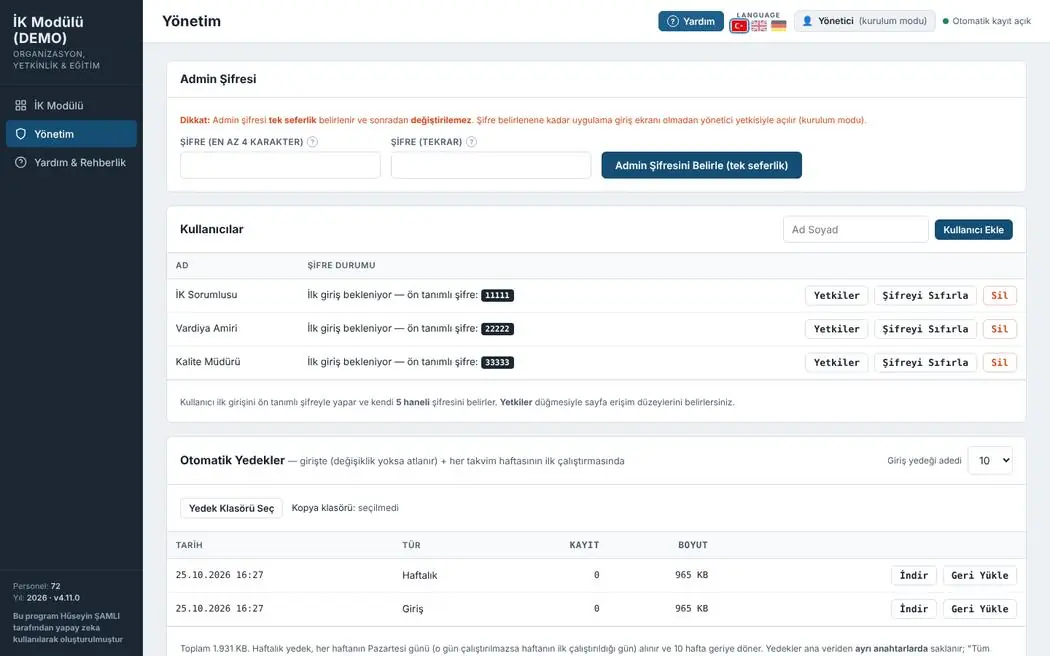
The administrator adds users, resets their passwords or deletes them. A new user logs in for the first time with a default password and sets their own 5-digit password.
- Admin password is set once
- Setup mode until a password is set
- Password status per user
Page permissions
Each user is given a separate access level for each of the 100 pages. A shift supervisor may edit only the schedule and never see payroll at all.
- No access · View only · View + edit
- Module cards and menus without permission are hidden
- Administration page open to the administrator only
Automatic backups
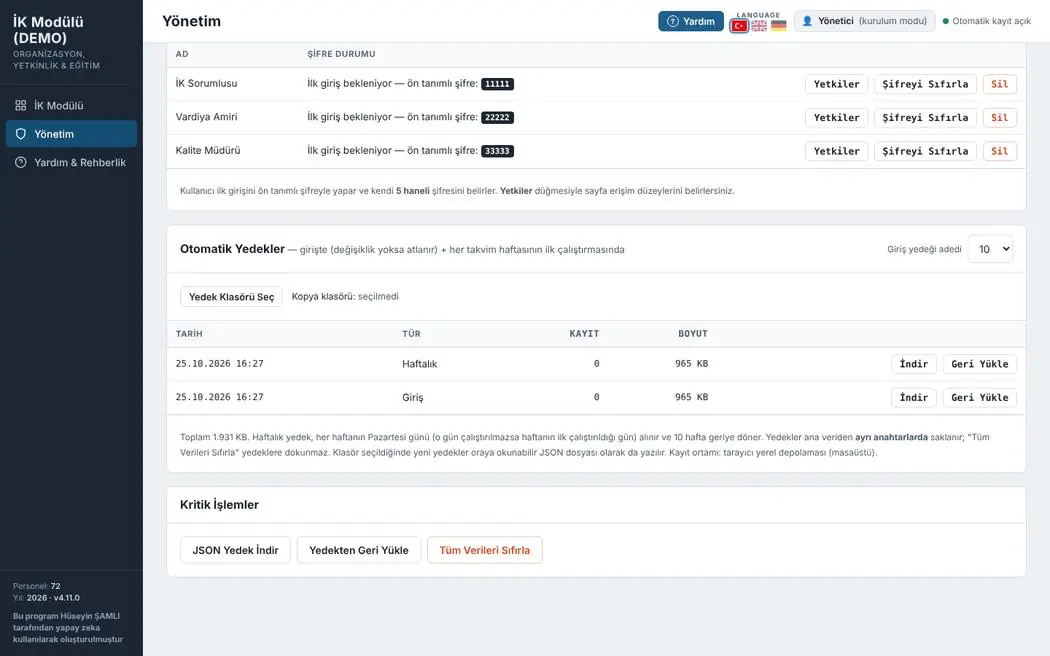
A backup is taken at every login (skipped if nothing has changed) and at the first run of each week. Backups are stored separately from the main data and, if desired, also written to a folder as readable JSON.
- Number of login backups between 5 and 20
- Weekly backups going back 10 weeks
- One-click download and restore
Help and guidance
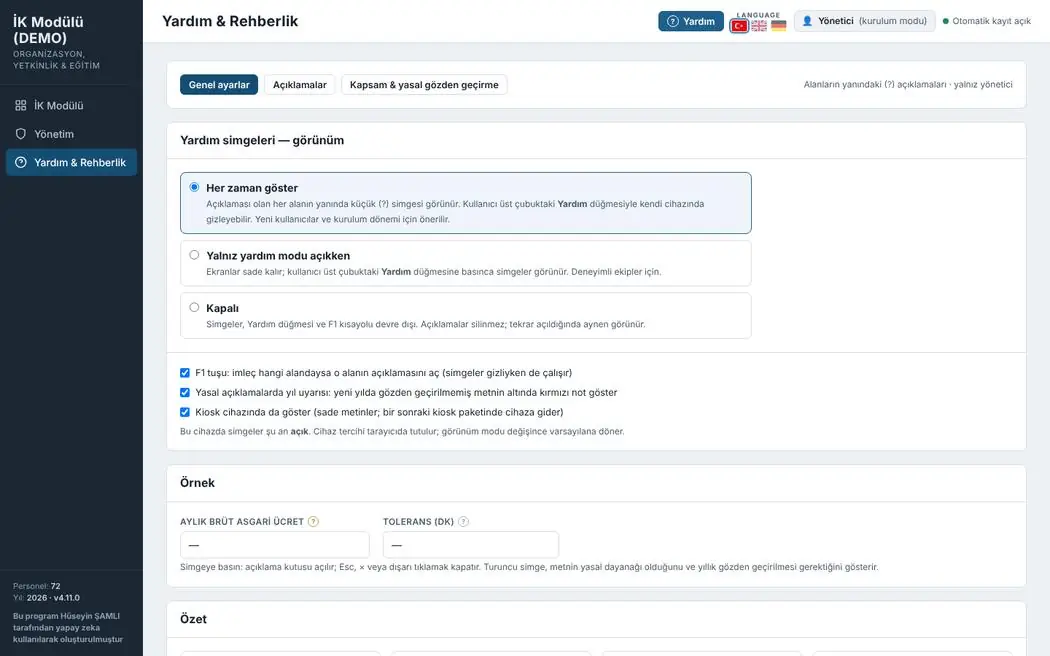
Controls how the (?) explanations next to fields are shown: always, only in help mode, or off. Texts with a legal basis trigger a warning if they are not reviewed in the new year.
- F1: explanation of the field under the cursor
- Annual review warning for legal texts
- Explanations are also sent to the kiosk device
Statutory parameters
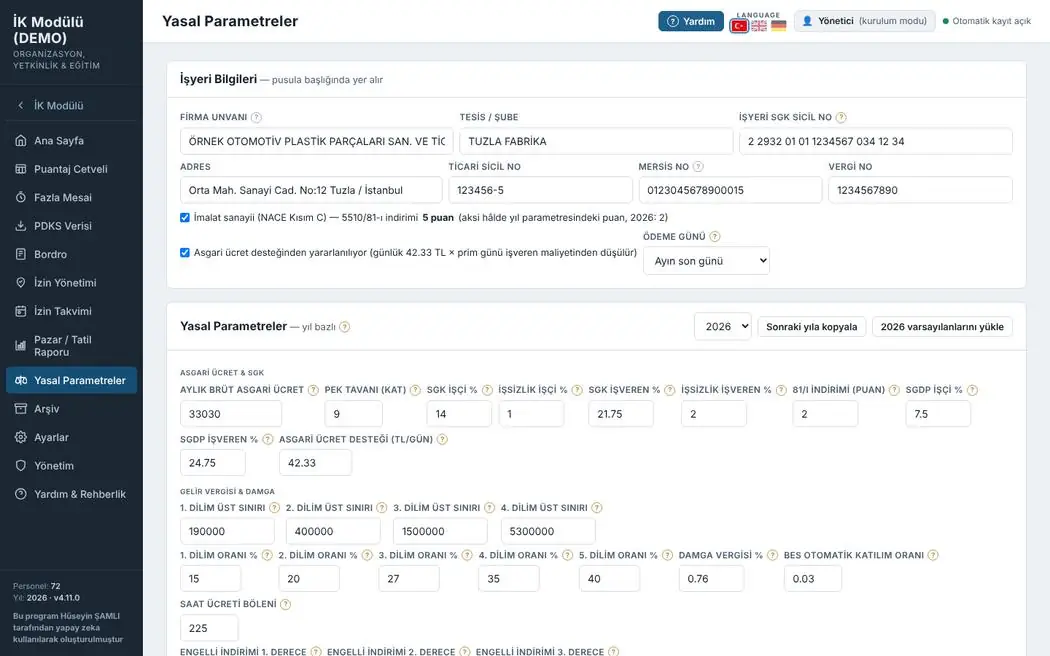
Minimum wage, SGK and unemployment insurance rates, income tax brackets and stamp duty are kept per year. A new year is copied from the previous one and only the changed values are updated.
- Workplace details appear in the payslip header
- Incentive and minimum wage support options
- Copy to next year
Module settings
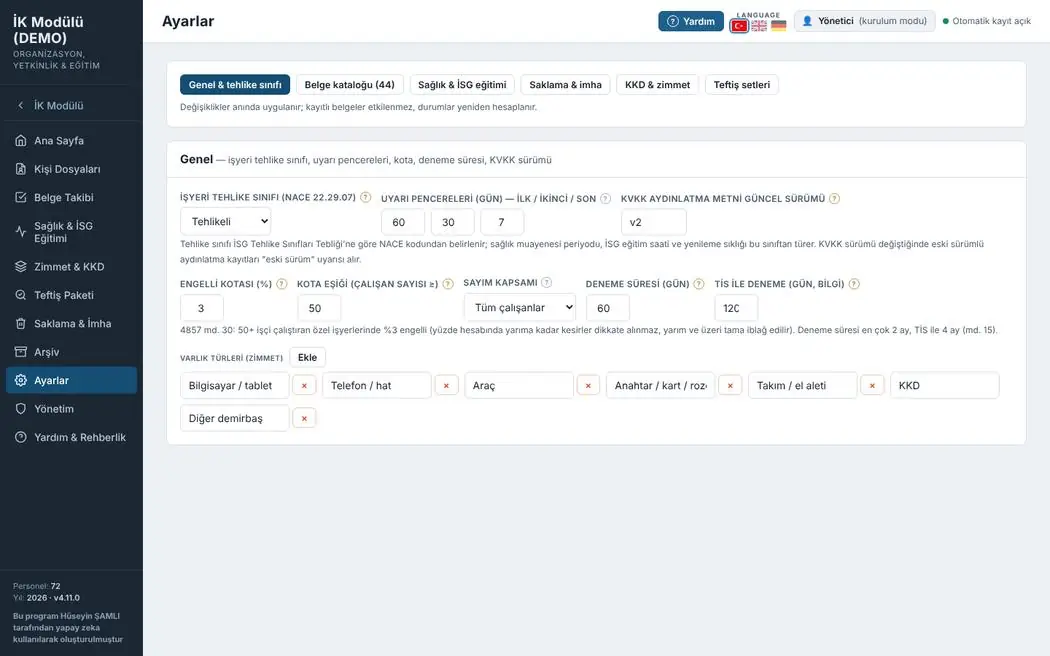
Each module has its own settings page. In the Personnel Files module, for example, the workplace hazard class, warning windows, disability quota, probation period and document catalogue are defined here.
- Changes apply immediately, records are preserved
- Medical examination and training intervals follow from the hazard class
- Document catalogue, issued equipment types, inspection sets
Year-end archive
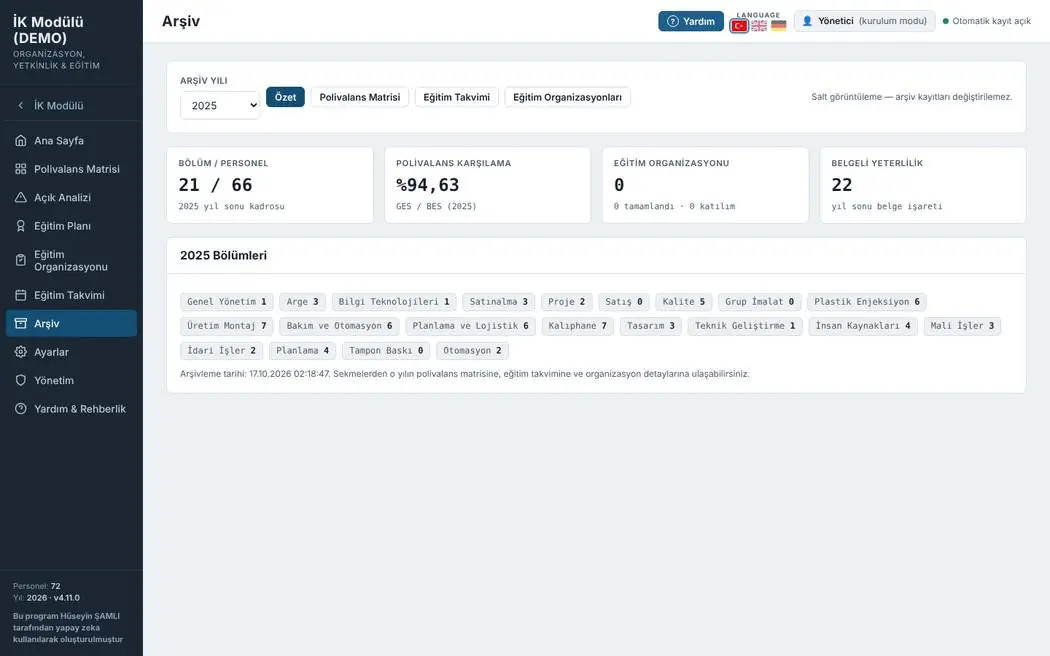
When the year is closed, the matrix, calendar and organisation records are archived. The archive is view-only; records from past years cannot be changed.
- Year selection
- Year-end headcount and indicators
- Tamper-proof record
Three layers against data loss
Automatic saving
Every change is saved immediately; the indicator in the top bar shows that saving is active. There is no need to press a Save button.
Automatic backup
Login backups and weekly backups going back 10 weeks. "Reset all data" does not touch the backups.
External backup
A readable JSON file in a chosen folder; download and restore a single-file backup at any time.
Your feedback shapes the program
Feedback is anonymous; I don't ask for a name or email. If you'd like to talk to me, you can message me on LinkedIn.