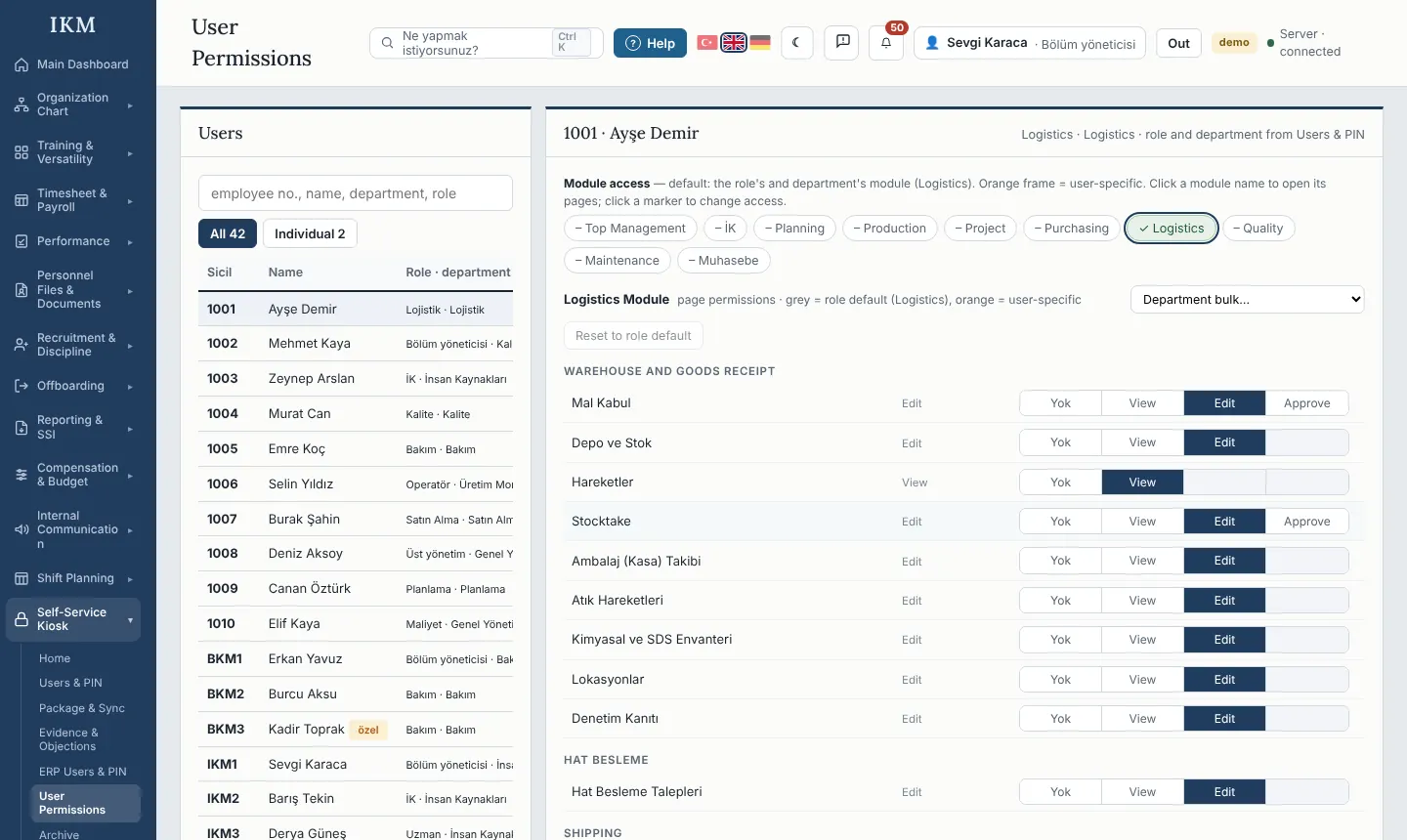
Four levels
Set per page; the role default applies, and user-specific differences are saved separately.
Derived from role and department
The modules a person can open are derived from their role and department; a user-specific list can be defined if needed.
- Roles — Operator, line leader, specialist, department manager, HR, quality, maintenance, logistics, purchasing, planning, project, costing, top management, auditor, device, ERP administrator.
- Who changes them — HR (User Permissions) and the ERP administrator (Console); both use the same screen. Changes are written to the log with old and new values.
- Separate accounts — The ERP administrator only enters the Console and does not use the modules. TVs and tablets open with a device account.
Management chain
A person's manager is synchronised from the HR organisation chart; visibility and approval follow this chain.
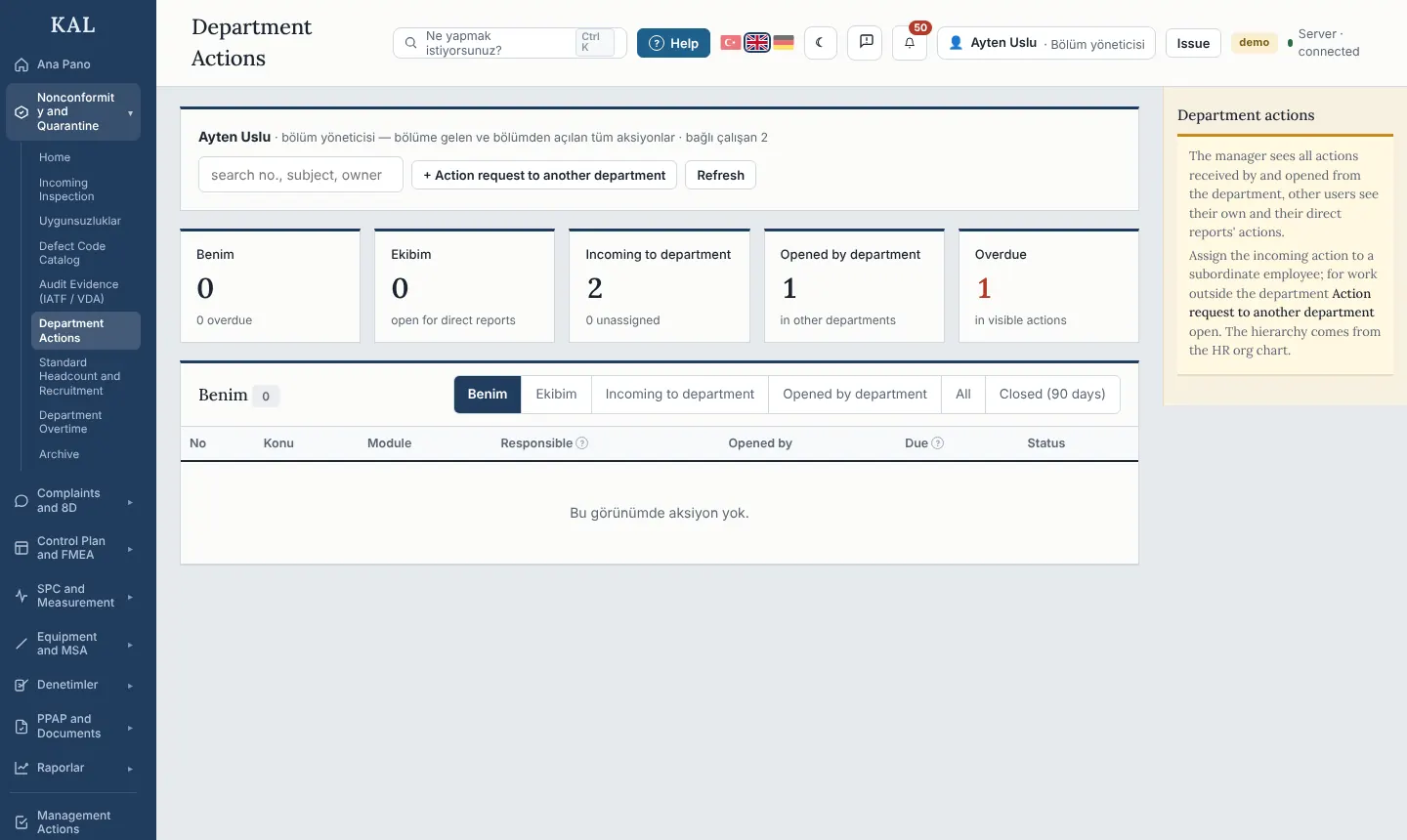
Supervisors, specialists and leaders see the actions of their team (up to 4 levels); department managers see their department and its sub-departments.
In Department Actions, an action is assigned or handed over to a subordinate employee; there is no assignment outside the department, a request is opened to the other department instead. Every transfer is written to the log.
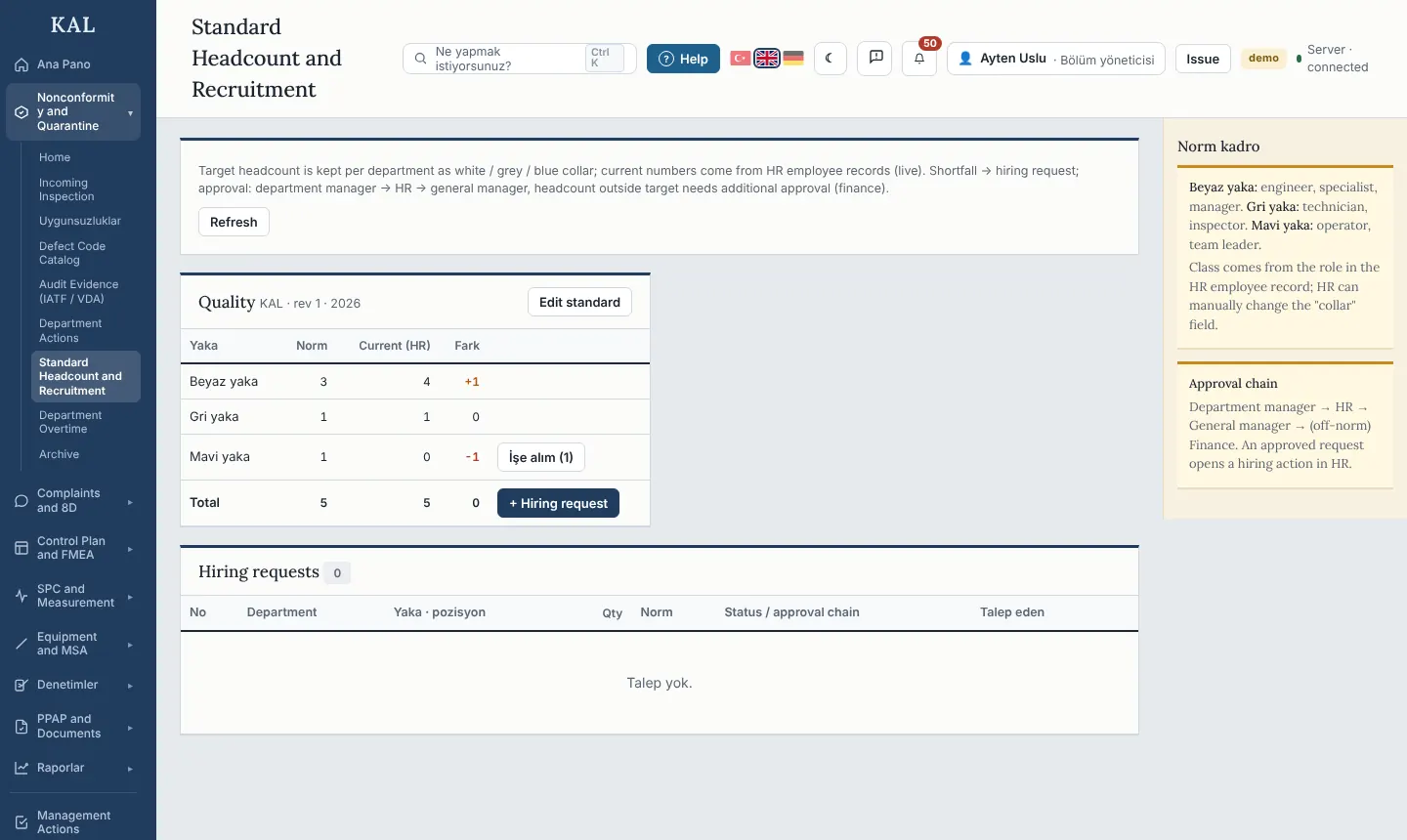
Recruitment request: department manager → HR → general manager; positions not in the headcount plan go to additional approval.
Login with employee number and PIN
Identity lives in one place: user = employee record.
- Login — Employee number and a 4–8 digit PIN; the PIN is stored on the server as a hash.
- Lock — After 5 failed attempts the account is locked for 5 minutes; failed attempts are written to the log.
- PIN on approval — For critical approvals (e.g. closing a management action) the PIN is requested again; the server does not accept an approval without verification.
- Session — After inactivity, desktop sessions close after 30 minutes and tablet sessions after 10 minutes. A person logged out or deactivated from the Console returns to the login screen within one minute.
How it looks in the program
Not on its own
Visibility and approval rules are derived from the management chain.
Action and Approval System →Permission is a server rule, not hiding in the browser.
Data Assurance →The device account opens with a fixed page.
Tablet and TV →Use module by module
Users, PIN reset and user-specific permissions
Sees all modules and actions
The Department Actions, Headcount Plan and Department Budget pages open with the person's department
Frequently asked questions
Are permissions enforced in the browser?
No. Module access, record visibility and approval rules are checked on the server; records are not sent to people without permission.
Can user-specific permissions be granted?
Yes. HR or the ERP administrator defines a module list and page levels that differ from the role; only differences from the default are saved, and changes are written to the log.
Why a PIN instead of a password?
For quick login on the shop floor. The PIN is hashed on the server, the account is locked for 5 minutes after 5 failed attempts and the PIN is requested again for critical approvals.
See for yourself
Who can enter which module, what they can do on which page and whose work they can see is derived from role, department and the management chain. The rules are enforced on the server; user-specific exceptions are written to the log.
Start the demo →